User Guide
TAssist is a desktop app designed to help teaching assistants manage their classes and students. TAssist lets you save student contact data and group students into class groups and modules. Record attendance, mark assessments, and more by typing commands. TAssist combines its text command-based system with an intuitive interface to help you work quickly while displaying information in a clear and organized manner. If you are someone who prefers Command Line Interface (CLI) to Graphical User Interface (GUI) while having a GUI to view student data, TAssist is the app for you. However, if you are not familiar with CLI, this user guide will help you understand how each commands work.
- Quick start
- Using this Guide
- Features & Walkthrough
- Features
- FAQ
- Command summary
- Command Shortcodes
Quick start
- Ensure you have Java
11or above installed in your Computer.- You can download the Oracle version or another alternative such as the OpenJDK version.
- To check if Java is installed successfully, you can open Command Prompt (for Windows users) or Terminal (for Mac users) and type
java --version.
-
Download the latest
TAssist.jarfrom here. -
Copy the file to the folder you want to use as the home folder for your TAssist.
-
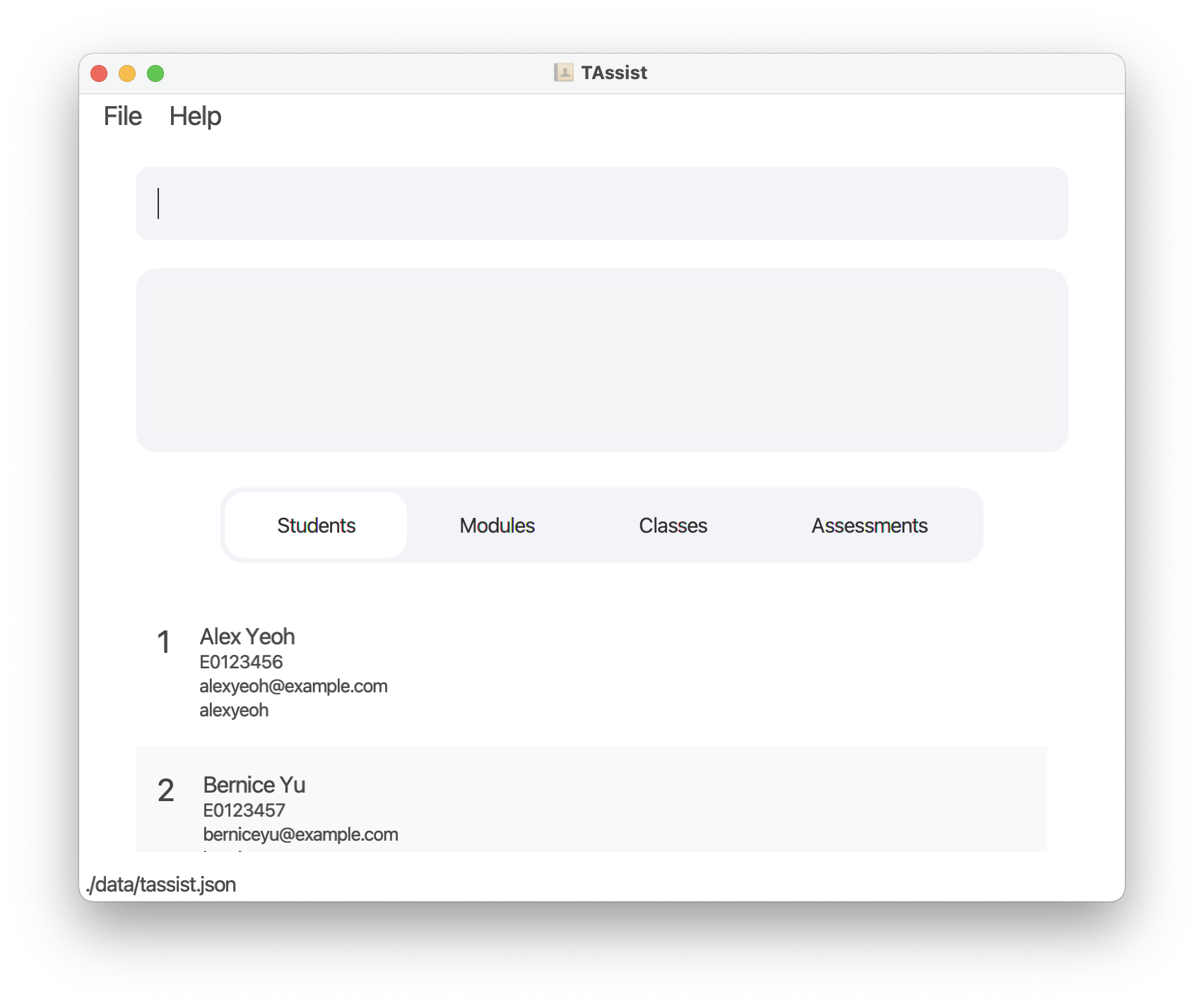
Double-click the file to start the app. The GUI similar to the below should appear in a few seconds. Note how the app contains some sample data.
-
When you open TAssist for the first time, the app displays sample data. A data file will be saved to your device only after you issue your first command.
-
Type the command in the command box and press Enter to execute it. e.g. typing
list studentand pressing Enter will list all students added.
Some example commands you can try:-
list student: Lists all students. -
add studentid/E0123456 n/John Doe e/johnd@u.nus.edu: Adds a student namedJohn Doeto TAssist. -
delete student3: Deletes the 3rd student shown in the listing of the entity.
-
- Refer to the Features below for details of each command.
Using this Guide
 Notes about the command format:
-
Words in
UPPER_CASEare the parameters to be supplied by the user.
e.g. inadd n/NAME,NAMEis a parameter which can be used asadd n/John Doe. -
Items in square brackets are optional.
e.g.n/NAME [t/TELEGRAM_ID]can be used asn/John Doe t/john_doeor asn/John Doe. -
Only one group of arguments in curly braces can be used as argument. Each group is separated by a
|.
e.g.{m/MODULE_INDEX | c/CLASS_GROUP_INDEX}can be used asm/1or asc/1but not asm/1 c/1. -
If multiple options are accepted for a parameter, only one option can be specified.
e.g.s/all|STUDENT_INDEXES|STUDENT_IDScan be used ass/all,s/1,2,3,4,5,6ands/e0123456,e0234567but not mix-and-matched ass/all,1,2,e0123456. -
Parameters can be in any order.
e.g. if the command specifiesn/NAME e/EMAIL,e/EMAIL n/NAMEis also acceptable. -
If a parameter is expected only once in the command, but you specified it multiple times, only the last occurrence of the parameter will be taken.
e.g. if you specifyt/john_doe t/johnny_doe, onlyt/johnny_doewill be taken. -
Extraneous parameters for commands that do not take in parameters will be ignored.
e.g. if the command specifieslist student 123, it will be interpreted aslist student. -
For commands that do take in parameters, any extraneous parameters will be parsed together with the value of the previous parameter.
e.g. if the command specifieslist student c/1 f/1, the class group index will be interpreted as1 f/1and an error will be returned.
Features & Walkthrough
User Interface (UI)
TAssist’s user interface features a command input box, a command results box, and a button bar. Use the buttons to switch between lists of your modules, class groups, students, and assessments.
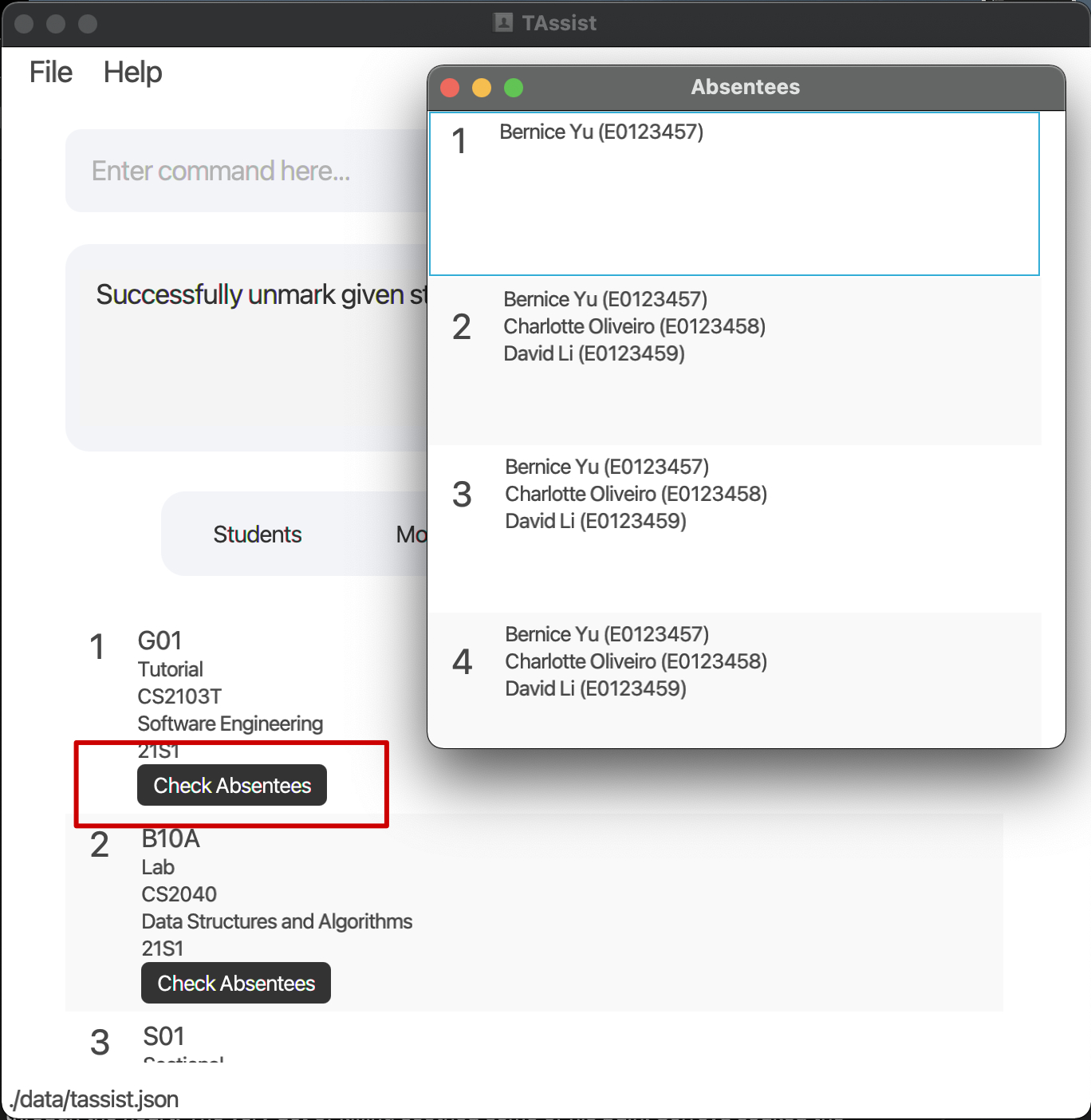
From TAssist’s “Classes” tab, click the “Check Absentees” button to open a popup window. This popup displays a list of lessons 1-13 and any students who were absent for a lesson.
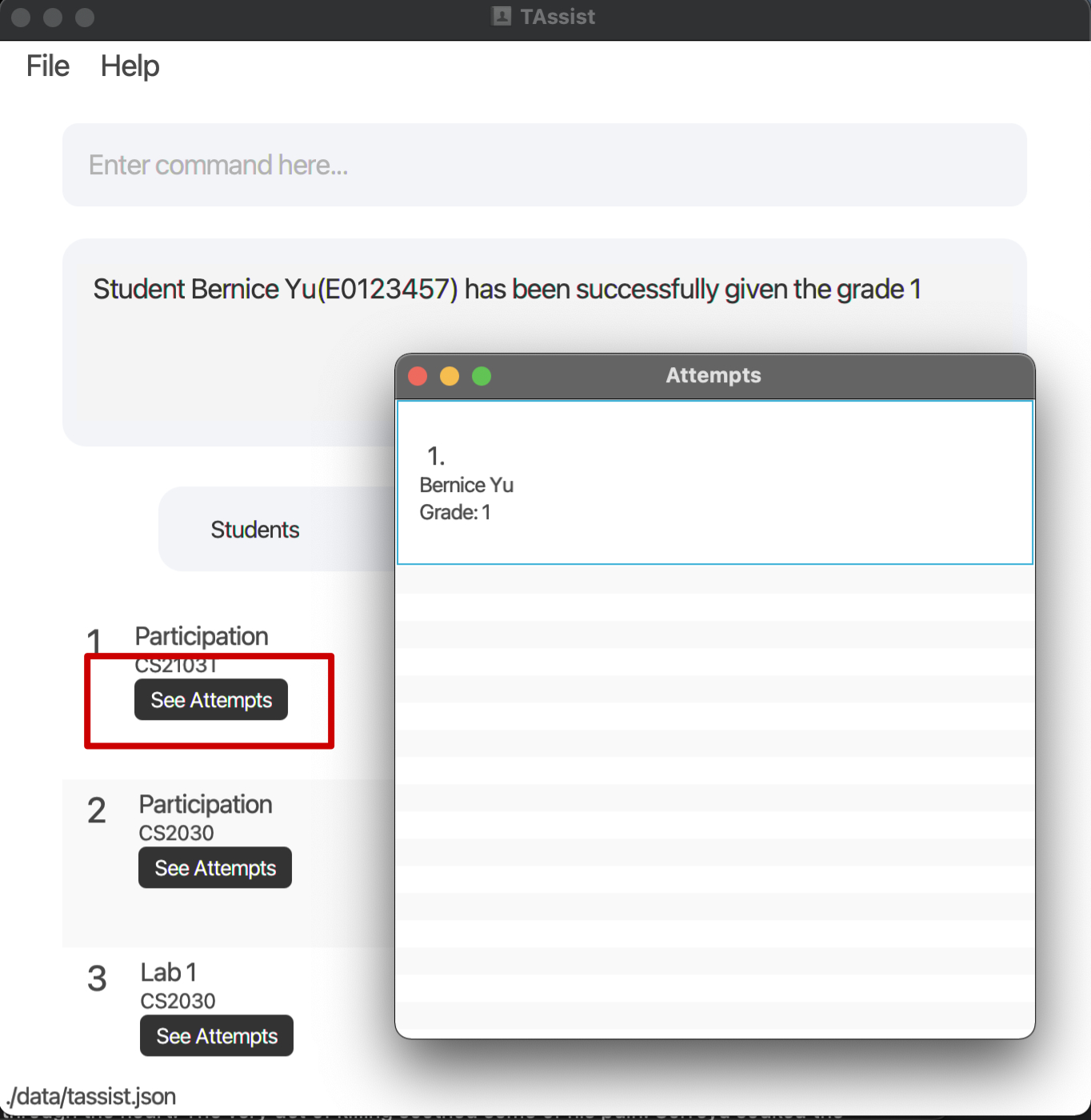
From TAssist’s “Assessments” tab, click the “See Attempts” button to open a popup window. This popup displays a list of student attempts for that assessment including their name and assigned grade.
Command Parameters
| Parameter | Prefix | Description |
|---|---|---|
| ACADEMIC_YEAR | a/ |
It represents the year (last 2 digits) and a semester. Semester value ranges from S1 to S8. The table under the Add a module feature shows the representation of each value.
|
| ASSESSMENT_INDEX | a/ |
It represents the index of the assessments shown when list assessment is executed.
|
| ASSESSMENT_NAME | n/ |
It represents the name of the assessments e.g. Lab 1.
|
| CLASS_GROUP_ID | id/ |
It represents the ID of the class group, similar to those used by NUSMods, e.g. T13.
|
| CLASS_GROUP_INDEX | c/ |
It represents the index of the class groups shown when list class is executed.
|
| CLASS_GROUP_TYPE | t/ |
It represents the type of the class groups e.g. Tutorial.
|
e/ |
It represents the email of the student. | |
| GRADE | g/ |
It represents the numerical grade given to a student's assignment attempt. |
| INDEX | No prefix | It represents the index of the students/modules/class groups/assessments shown when list student/list module/list class/list assessment is executed.
|
| KEYWORD | No prefix | It represents the string to match when returning search results. |
| MODULE_CODE | c/ |
It represents the code of the module, similar to those used by NUSMods, e.g. CS2103T.
|
| MODULE_INDEX | m/ |
It represents the index of the modules shown when list module is executed.
|
| MODULE_NAME | n/ |
It represents the name of the module, similar to those used by NUSMods, e.g. Software Engineering Project.
|
| NAME | n/ |
It represents the name of the student. |
| SIMPLE_NAME | sn/ |
It represents the short form of the assessment. It is used to grade assessment, so that you do not need to type the full assessment name. If no simple name is provided, the assessment name will be used (with the spaces removed). |
| STUDENT_ID | id/ |
It represents the ID of the student, e.g. E0123456.
|
| TELEGRAM_ID | t/ |
It represents the Telegram handle of the student. |
| WEEK_INDEX | w/ |
It represents the week index of the lesson, similar to the ones used by NUS Academic Calendar, e.g. 1 to 13.
|
| all|STUDENT_INDEXES|STUDENT_IDS | s/ |
|
Features
Managing Modules
Add a module: add module
Start using TAssist by adding modules you’re teaching.
Format: add module n/MODULE_NAME c/MODULE_CODE a/ACADEMIC_YEAR
-
ACADEMIC_YEARis represented by the year (last 2 digits) and a semester. - Semester value ranges from S1 to S8. The table below shows the representation of each value:
| Key | Semester |
|---|---|
| S1 | Semester 1 |
| S2 | Semester 2 |
| S3 | Special Term (Part 1) |
| S4 | Special Term (Part 2) |
| S5 | Mini-Semester 1A |
| S6 | Mini-Semester 1B |
| S7 | Mini-Semester 2A |
| S8 | Mini-Semester 2B |
Examples:
-
add module n/Software Engineering Project c/CS2103T a/21S1creates a new module namedSoftware Engineering Projectwith a module code ofCS2103Tfor the academic year21S1(academic year 2021 Semester 1).
List all modules: list module
Use the list module command to display your modules in TAssist’s “Modules” tab.
Format: list module
Delete a module: delete module
 Caution:
This command is destructive.
Caution:
This command is destructive.
You can always delete a module from TAssist. Deleting the module will also delete associated class group(s) and assessment(s).
Format: delete module INDEX
- Deletes the module at the specified
INDEX. - The index refers to the index number shown in the displayed module list.
- The module is removed from both the displayed list and the original list.
- The index must be a positive integer 1, 2, 3, …
Examples:
-
list modulefollowed bydelete module 2deletes the 2nd module and its associated class group(s) and assessment(s) in TAssist.
Managing Assessments
Add an assessment: add assessment
TAssist lets you create and grade module-wide assessments. Assessments can represent any gradable component including exams, participation, labs, and homework assignments.
Format: add assessment n/ASSESSMENT_NAME m/MODULE_INDEX [sn/SIMPLE_NAME]
Examples:
-
add assessment n/Test m/1creates a new assessment that is tied to the 1st module shown whenlist moduleis executed.
List all assessments: list assessment
Use the list assessment command to display your assessments in TAssist’s “Assessments” tab. Optionally, you can filter this list by a specific module.
Format: list assessment [m/MODULE_INDEX]
- Displays the assessments belonging to the module at the specified
MODULE_INDEX. IfMODULE_INDEXis not specified, displays all assessments. - The index refers to the index number shown in the displayed module list.
- The index must be a positive integer 1, 2, 3, …
Examples:
-
list assessment m/1displays the assessment(s) belonging to the 1st module shown whenlist moduleis executed.
Delete an assessment: delete assessment
Caution:
This command is destructive.
Delete any assessment from TAssist by specifying its index.
Format: delete assessment INDEX
- Deletes the assessment at the specified
INDEX. - The index refers to the index number shown in the displayed assessment list.
- The assessment is removed from both the displayed list and the original list.
- The index must be a positive integer 1, 2, 3, …
Examples:
-
list assessmentfollowed bydelete assessment 2deletes the 2nd assessment in TAssist.
Managing Classes
Add a class group: add class
After creating modules in TAssist, you can add class groups to these modules. Class groups refer to labs, recitations, sectionals, and tutorials you personally teach.
Format: add class id/CLASS_GROUP_ID t/CLASS_GROUP_TYPE m/MODULE_INDEX
- You can create 4 different types of class groups: labs, recitations, sectionals, and tutorials. Specify
CLASS_GROUP_TYPEusing one of the following values:LAB,RECITATION,SECTIONALandTUTORIAL.
Examples:
-
add class id/T13 t/tutorial m/1creates a new class group that is tied to the 1st module shown whenlist moduleis executed.
List all class groups: list class
Use the list class command to display your class groups in TAssist’s “Classes” tab. Optionally, you can filter this list by a specific module.
Format: list class [m/MODULE_INDEX]
- Displays the class groups belonging to the module at the specified
MODULE_INDEX. IfMODULE_INDEXis not specified, displays all class groups. - The index refers to the index number shown in the displayed module list.
- The index must be a positive integer 1, 2, 3, …
Examples:
-
list class m/1displays the class groups belonging to the 1st module shown whenlist moduleis executed.
Delete a class group: delete class
Caution:
This command is destructive.
Use the delete class command to remove a specified class group from TAssist.
Format: delete class INDEX
- Deletes the class group at the specified
INDEX. - The index refers to the index number shown in the displayed class group list.
- The class group is removed from both the displayed list and the original list.
- The index must be a positive integer 1, 2, 3, …
Examples:
-
list classfollowed bydelete class 2deletes the 2nd class group in TAssist.
Managing students
Create a student: add student
Create a student to record their contact details. You can enrol this student in class groups later.
Format: add student id/STUDENT_ID n/NAME e/EMAIL [t/TELEGRAM_ID]
Examples:
-
add student id/E0123456 n/John Doe e/johnd@u.nus.educreates a new student namedJohn Doewith a student ID ofE0123456and emailjohnd@u.nus.edu. -
add student id/E0123456 n/John Doe e/johnd@u.nus.edu t/john_doecreates a new student namedJohn Doewith a student ID ofE0123456, emailjohnd@u.nus.eduand telegram handlejohn_doe.
List all students: list student
Use the list student command to display your students in TAssist’s “Students” tab. Optionally, you can filter this list by a specific module or class group.
Format: list student [{m/MODULE_INDEX | c/CLASS_GROUP_INDEX}]
- Displays the students belonging to the module at the specified
MODULE_INDEXor the class group at the specifiedCLASS_GROUP_INDEX. - The index refers to the index number shown in the displayed module or class group list.
- The index must be a positive integer 1, 2, 3, …
Examples:
-
list student m/1displays the students belonging to the 1st module shown whenlist moduleis executed. -
list student c/2displays the students belonging to the 2nd class group shown whenlist classis executed.
Find students: find
Use the find command to search for students whose names contain any of the specified keywords.
Format: find KEYWORD [MORE_KEYWORDS]
- The search is case-insensitive. e.g
hanswill matchHans. - The order of the keywords does not matter. e.g.
Hans Bowill matchBo Hans. - Only the name is searched.
- Only full words will be matched e.g.
Hanwill not matchHans. - Students matching at least one keyword will be returned (i.e.
ORsearch). e.g.Hans Bowill returnHans Gruber,Bo Yang.
Examples:
-
find JohnreturnsjohnandJohn Doe. -
find alex davidreturnsAlex Yeoh,David Li.
Delete a student: delete student
Caution:
This command is destructive.
Delete a specified student from TAssist as well as the student’s attempt(s) in any assessment(s).
- Deletes the student at the specified
INDEX. - The index refers to the index number shown in the displayed student list.
- The student is removed from both the displayed list and the original list.
- The index must be a positive integer 1, 2, 3, …
Examples:
-
list studentfollowed bydelete student 2deletes the 2nd student in the whole student list and their assessment(s)’ attempt(s) in TAssist.
Enrol a student: enrol
Once you’ve created some students, enrol them into class groups. You can enrol the same student into multiple class groups.
Format: enrol c/CLASS_GROUP_INDEX s/all|STUDENT_INDEXES|STUDENT_IDS
- Enrols the specified students to the class group at the specified
CLASS_GROUP_INDEX. - Students may be specified with either
all(i.e. all students),STUDENT_INDEXESorSTUDENT_IDS. - Multiple
STUDENT_INDEXESorSTUDENT_IDSshould be separated with commas (i.e.s/1,2,3ors/e0123456,e0234567). - Duplicate
STUDENT_INDEXESorSTUDENT_IDSwill be ignored. - The index refers to the index number shown in the displayed student or class group list.
- The index must be a positive integer 1, 2, 3, …
Examples:
-
enrol c/1 s/allenrols all students to the 1st class group shown whenlist classis executed. -
enrol c/1 s/1,2,3,4,5,6enrols the 1st 6 students shown whenlist studentis executed to the 1st class group shown whenlist classis executed. -
enrol c/1 s/e0123456,e0234567enrols the students with student IDsE0123456andE0234567to the 1st class group shown whenlist classis executed.
Disenrol a student: disenrol
Use this command to remove 1 or more students from a class group.
Format: disenrol c/CLASS_GROUP_INDEX s/all|STUDENT_INDEXES|STUDENT_IDS
- Disenrols the specified students from the class group at the specified
CLASS_GROUP_INDEX. - Students may be specified with either
all(i.e. all students),STUDENT_INDEXESorSTUDENT_IDS; they should already be enrolled in the specified class group. - Multiple
STUDENT_INDEXESorSTUDENT_IDSshould be separated with commas (i.e.s/1,2,3ors/e0123456,e0234567). - Duplicate
STUDENT_INDEXESorSTUDENT_IDSwill be ignored. - The index refers to the index number shown in the displayed student or class group list.
- The index must be a positive integer 1, 2, 3, …
Examples:
-
disenrol c/1 s/alldisenrols all students from the 1st class group shown whenlist classis executed. -
disenrol c/1 s/1,2,3,4,5,6disenrols the 1st 6 students belonging to the 1st class group shown whenlist classis executed. -
disenrol c/1 s/e0123456,e0234567disenrols the students with student IDsE0123456andE0234567from the 1st class group shown whenlist classis executed.
Taking student attendance
Mark attendance: mark
Record attendance for any class group by marking student(s) “present” for a given week. Currently, TAssist assumes that each class group meets at most once per week from week 1 to week 13.
Format: mark c/CLASS_GROUP_INDEX w/WEEK_INDEX s/all|STUDENT_INDEXES|STUDENT_IDS
- Marks the attendance(s) of the specified student(s) belonging to the class group at the specified
CLASS_GROUP_INDEXfor the specified week. - Students may be specified with either
all(i.e. all students),STUDENT_INDEXESorSTUDENT_IDS. - Multiple
STUDENT_INDEXESorSTUDENT_IDSshould be separated with commas (i.e.s/1,2,3ors/e0123456,e0234567). - Duplicate
STUDENT_INDEXESorSTUDENT_IDSwill be ignored. - The index refers to the index number shown in the displayed student or class group list.
- The index must be a positive integer 1, 2, 3, …
Examples:
-
mark c/1 w/3 s/allmarks the attendances of all the students belonging to the 1st class group for week 3. -
mark c/1 w/3 s/1,2,3,4,5,6marks the attendances of the 1st 6 students belonging to the 1st class group for week 3. -
mark c/1 w/3 s/e0123456,e0234567marks the attendances of the students with student IDsE0123456andE0234567belonging to the 1st class group for week 3.
Unmark attendance: unmark
Use the unmark command to mark student(s) as “absent” during a specified lesson (identified by class group and week).
Format: unmark c/CLASS_GROUP_INDEX w/WEEK_INDEX s/all|STUDENT_INDEXES|STUDENT_IDS
- Unmarks the attendance(s) of the specified student(s) belonging to the class group at the specified
CLASS_GROUP_INDEXfor the specified week. - Students may be specified with either
all(i.e. all students),STUDENT_INDEXESorSTUDENT_IDS. - Multiple
STUDENT_INDEXESorSTUDENT_IDSshould be separated with commas (i.e.s/1,2,3ors/e0123456,e0234567). - Duplicate
STUDENT_INDEXESorSTUDENT_IDSwill be ignored. - The index refers to the index number shown in the displayed student or class group list.
- The index must be a positive integer 1, 2, 3, …
Examples:
-
unmark c/1 w/3 s/allunmarks the attendances of all the students belonging to the 1st class group for week 3. -
unmark c/1 w/3 s/1,2,3,4,5,6unmarks the attendances of the 1st 6 students belonging to the 1st class group for week 3. -
unmark c/1 w/3 s/e0123456,e0234567unmarks the attendances of the students with student IDsE0123456andE0234567belonging to the 1st class group for week 3.
 Tip: If there are only a couple of students that are absent, you may mark the attendance for all students using
 mark c/CLASS_GROUP_INDEX w/WEEK_INDEX s/all before using unmark c/CLASS_GROUP_INDEX w/WEEK_INDEX s/STUDENT_INDEXES|STUDENT_IDS to mark the couple of students absent.
Grade assessments: grade
Grade a student’s attempt at a specified module assessment. You can assign the same grade to multiple students at once.
Format: grade {a/ASSESSMENT_INDEX | sn/SIMPLE_NAME m/MODULE_INDEX} s/all|STUDENT_INDEXES|STUDENT_IDS [g/GRADE]
- The assessment can be specified with either the
ASSESSMENT_INDEXor theSIMPLE_NAMEandMODULE_INDEX. - Students may be specified with either
all(i.e. all students),STUDENT_INDEXESorSTUDENT_IDS; they should already be enrolled in the module tied to the assessment. - Multiple
STUDENT_INDEXESorSTUDENT_IDSshould be separated with commas (i.e.s/1,2,3ors/e0123456,e0234567). - Duplicate
STUDENT_INDEXESorSTUDENT_IDSwill be ignored. - The index refers to the index number shown in the displayed assessment or module list.
- The index must be a positive integer 1, 2, 3, …
- If the grade is omitted, the value of the student’s attempt will simply be incremented (i.e.
0will be incremented to1).
Examples:
-
grade sn/lab1 m/1 s/all g/1adds a grade of value1to thelab1assessment for all students enrolled in the 1st module shown whenlist moduleis executed. -
grade a/1 s/1,2,3,4,5,6increments the grades of the 1st 6 students enrolled in the module tied to the 1st assessment shown whenlist assessmentis executed. -
grade a/1 s/e0123456,e0234567 g/1adds a grade of value1for the students with student IDsE0123456andE0234567to the 1st assessment shown whenlist assessmentis executed.
Tip: When grading assessments, executing the command without g/GRADE will increment what ever grade the student previously had. If the student has no grade for the assessment, they will automatically be graded 1. Hence, you will be able to execute the same command every week when grading assessment like class participation.
Managing data
Clear all entries: clear
Caution:
This command is destructive.
Use this command to clear all entries from TAssist including modules, assessments, class groups, and students. You will not be able to restore this data.
Format: clear
Saving the data
TAssist saves data in the hard disk automatically after any command that changes the data. There is no need to save manually.
Editing the data file
TAssist saves data as a JSON file [JAR file location]/data/tassist.json. Advanced users are welcome to update data directly by editing that data file.
Caution:
If your changes to the data file makes its format invalid, TAssist will discard all data and start with an empty data file at the next run.
Archiving data files [coming in v2.0]
Details coming soon …
Exiting the program: exit
Exit the program.
Format: exit
FAQ
Q: How do I transfer my data to another Computer?
A: Install the app in the other computer and overwrite the empty data file it creates with the file that contains the data of your previous TAssist home folder.
Command summary
| Action | Format, Examples | |
|---|---|---|
| Add | student |
|
| module |
|
|
| class group |
|
|
| assessment |
|
|
| Enrolling | student(s) |
|
| student(s) |
|
|
| Taking attendance | student(s) |
|
| Grading | assessment |
|
| List | students |
|
| modules |
|
|
| class groups |
|
|
| assessments |
|
|
| Filter | students |
|
| class groups |
|
|
| assessments |
|
|
| Find | student |
|
| Delete | student |
|
| module |
|
|
| class group |
|
|
| assessment |
|
|
| Clearing |
|
|
| Exiting |
|
|
Command Shortcodes
To save you time, TAssist supports shorthand commands for each entity. When entering commands, a shortcode (substring of original entity) can be used in place of the full entity name.
- Example:
list ais equivalent tolist assessment - Example:
delete stu 2is equivalent todelete student 2
| Entity | Possible Shorthands |
|---|---|
module |
mmod
|
assessment |
aassess
|
class |
ccl
|
student |
sstu
|